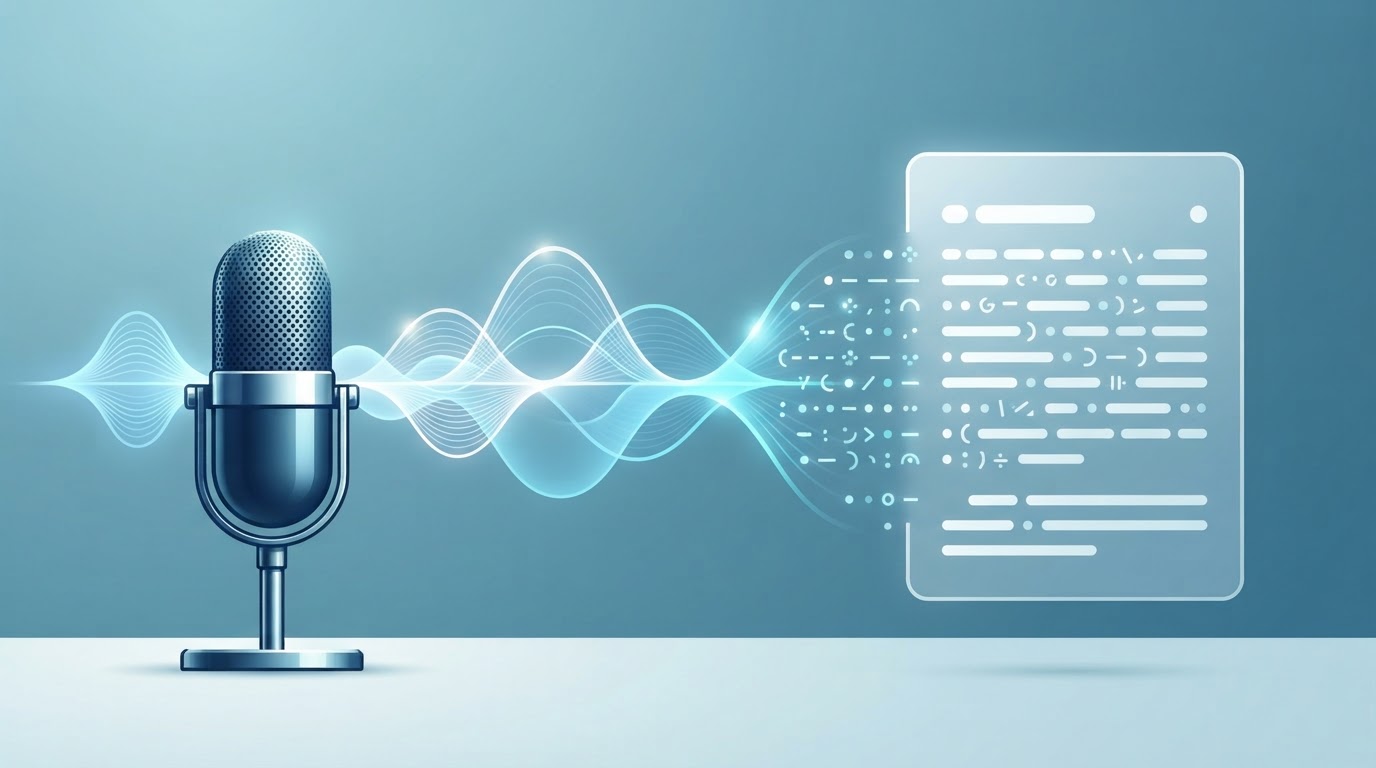
Typing a long text by hand is slow. We can speak faster than we type, so it is handy when the computer turns your speech into text by itself. Below is how to turn speech into text on a computer, and which way is simpler.
Why you might need it
- Quickly write an email, a note or a message without typing.
- Capture a thought before it slips away.
- Turn a voice note into text.
- Write when your hands are busy or tired.
Way 1. The built-in Windows voice typing
Windows has voice typing built in: press Win + H in any text field and speak. It is free and needs no installation. The downsides: it needs the internet, the settings are scattered around the system, and you often have to fix punctuation by hand.
Way 2. Online services
There are websites where you can speak into the microphone or upload a recording and get text back. Handy for a one-off task, but keep in mind: your voice goes to someone else's server. For personal or work recordings that is not always a good idea.
Way 3. A simple program on your computer
If you want it simple, with no fuss over settings, a dedicated program fits well. VoiceNote is made for exactly that: press “Record” and speak — the app types your speech as text for you. You can copy or save the finished text. The interface is simple: one Record button, one Stop button.
More about the VoiceNote program
How to dictate for cleaner text
- Speak evenly and not too fast.
- Make short pauses between phrases.
- Record in a quiet place, with no background noise.
- Check the finished text and fix the punctuation.
FAQ
Do I need an expensive microphone?
No. A regular laptop or headset microphone is fine — the main thing is to speak clearly.
Which language does it work in?
Russian and other languages.
Will my speech go to someone else's server?
VoiceNote runs on your own computer and does not send texts outside.
In short
- Fast and free — the built-in Windows voice typing (Win + H).
- A one-off, non-personal task — online is fine.
- Simple and on your own computer — VoiceNote: press Record, speak, get text.